Build an AI CRM That Automates Your Outreach & Pipeline (for Free)


CRM software companies are screwed.
I just built an AI-intelligent CRM using nothing more than Notion and Claude Cowork. It automatically logs leads, progresses them through my sales pipeline, and sends me a daily report on exactly who I need to engage with, including where they sit in the funnel and the outreach message to send (personalized to their LinkedIn profile).
Notion holds the facts, Claude Cowork runs the automation, and a scheduled task hands me my daily follow-up report before I’ve finished my first cup of coffee.
What’s more, I figured out how to do it using a free Notion account, meaning that the cost is whatever you’re currently paying for Claude, and nothing more.
And now, I’m here to show you the exact CRM build I use for Flyletter, as well as the step-by-step process to set one up for yourself. By the end you’ll have your very own AI CRM, and can cut out HubSpot or Salesforce or whatever you’re currently using.
Let’s build it.
The Five Pieces & How They All Work
The whole system comes down to five pieces. The result is a Notion database that acts like a normal CRM with lead stages, outreach cadences, won opportunities, call notes, and more.
Each day, Claude Cowork will query that database for action items you need to complete and surface it in a daily report, including the draft outreach messages for you to approve and send (manually).
As you check off each task, send a message, or surface a new lead, all you have to do is literally chat with Claude Cowork directly and it will update your CRM database. You never even have to know what it looks like. Claude will access it on your behalf, and your only interaction is your conversation with Cowork.
That is the future. This is what you need to set it up:
-
Notion Connector (the Database): You can connect Notion to your Claude account directly in connectors. Notion will act as your CRM database and answers who the lead is, where they are in the pipeline, when you last contacted them, and any notes you provided.
-
Calendar Connector: I use Google Calendar, but any calendar will do. Connect it to Claude just like you did Notion, and Claude will be able to read your calendar, see when you have calls scheduled, and automatically update your CRM.
-
The Operating Manual: The rules Claude Cowork follows. What counts as a win, what the stages are, how fast you follow up, and the outreach messaging you use.
-
The Roster: Notion’s free tier caps the number of database rows you can query, but if you have Claude Cowork assign each lead a unique number and compile a document of each lead, it can query the Notion database by that unique identifier to grab the lead information.
-
The Daily Scheduled Task: The Claude Cowork automation that reads the operating manual and surfaces a daily outreach report for you to act on.
Step 1: Build Your Database
The first step is to set up a database in Notion that will act as your CRM. A database is basically just a table or a spreadsheet or whatever. Rows with columns of information on your leads.
It’s up to you to decide what information you want to collect, but I suggest that the schema stays lean to start, and you can build on it from there. Start with six fields, and add from there:
-
Name: The person.
-
Company: Where they work (incl. company size, rev, etc)
-
Status: The funnel stage they’re in (you’ll define these in Step 3).
-
Last-contact date: When you last touched them.
-
Next-action date: When the system should surface them again.
-
Source: How they came in.
Here’s a prompt to hand off to Claude Cowork to build it for you. Feel free to revise it for your specific needs:
Create a new Notion database called “CRM.” Add exactly these properties: Name (title), Company (text), Status (select with options I’ll define later), Last Contact (date), Next Action (date), Source (select: Inbound, Outreach, Referral, Event). Do not add any other properties. Confirm the database is created and share the link.
That gives you the factual layer. But facts alone don’t tell you what to do with them. A row that says “contacted, last touched Tuesday” is useless until the system knows what you’re actually trying to get out of this lead, which is Step 2.
Step 2: Define What ‘Success’ Actually Means
The next step is to make sure you define your goal, and communicate that to Claude Cowork so it includes it in the operating manual and understands when setting up the sales pipeline stages.
You can think about this as a traditional opportunity or win, but should be the specific outcome that puts money in the bank or moves your business forward.
For Flyletter, because it is early days and getting people to sign up and take their first action is the bottleneck, a win is a lead signing up for a free trial and having them write their first newsletter.
For now, that’s the number I actually care about. Once we prove our ability to get free signups, I’ll move the win back a stage to a paying customer.
So write yours down. One sentence. What is the exact thing that has to happen for a lead to count as won? Be blunt about it. If it’s a paid plan, say paid plan. If it’s a signed contract, say signed contract.
Hold onto that sentence, but don’t do anything with it yet. In Step 5 it becomes a rule that lives in the Operating Manual, and the automation reads it every single morning to decide who deserves your attention today.
Okay, so once you know what a win looks like, you need to know every stage a lead must pass through to get there.
Step 3: Map Your Exact Sales Pipeline Stages
This will be highly dependent on your sales process, and should represent every stage a lead needs to move through to be considered a “win.”
For Flyletter, my sales pipeline stages look something like:
-
New: A lead exists, you haven’t reached out.
-
Contacted: You’ve sent the first message.
-
Responded: They’ve replied.
-
Qualified: They’ve agreed to a call.
-
Call Scheduled: The call is on the books.
-
Call Completed: Pretty self-explanatory.
-
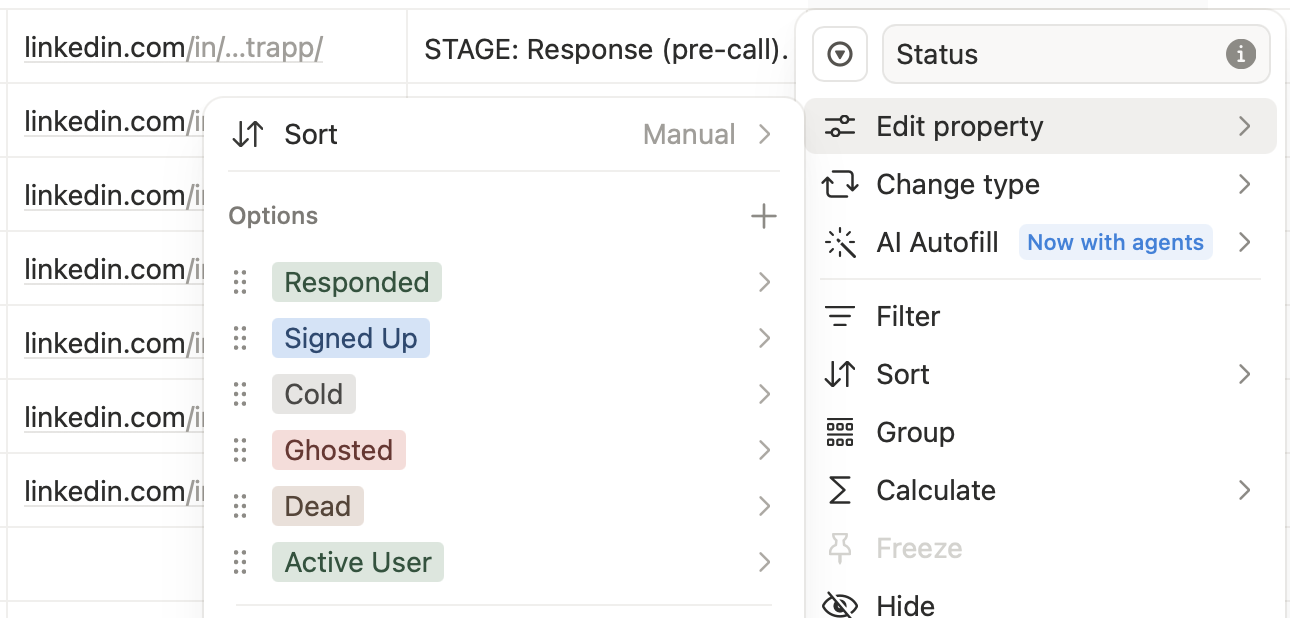
Signed up: They signed up for a free trial.
-
Activated: They wrote their first newsletter.
(Resist the urge to add “Warm” or “Nurturing” or “Follow-up Round 2” just in case. Every “just in case” stage is a stage you’ll forget to move people out of.)
These aren’t a separate list of stages living somewhere new. They’re the exact options in the Status field you built in Step 1. Same convention, same home, one place. Stages tell you where a lead is. Cadence tells you when to act on it, which is the last ingredient.
Step 4: Set the Exact Follow-Up Cadence
The way I run outreach is in two phases. The first is during the “contacted” stage where I use an automated LinkedIn tool like Botdog to automate my outreach to an audience I define in Sales Navigator.
Once someone responds, however, it kicks them out of the sequence, where a manual conversation occurs. This is the “responded” stage.
Within the “responded” stage, I gave Claude Cowork my exact follow up sequence, including the message templates and the follow up cadence. “Follow up soon” is not a rule an automation can run on. So give it numbers. Mine is:
-
2 days after first response with no reply, follow up.
-
3 days with no reply, nudge again.
-
5 days more of silence, send one more message.
This follow up cadence (and template follow up messages if you have them), like the win and the stages, gets written down once and fed to Claude Cowork in Step 5, which is where you set up the operating manual for Cowork to follow.
Step 5: Consolidate Everything Into an Operating Manual
The operating manual is what Claude Cowork reads every day when it runs its automation. I found that Cowork is better at following instructions if those instructions live close to where the data is.
So, you can set up a scheduled Cowork task and add this operating manual to the rules. But, I find it better to add the operating manual to Notion, and then in the scheduled task you create (in a few steps), you can include language for Cowork to use the Notion Operating Manual as its source of truth.
It essentially holds all the decisions you made in the previous steps, with instructions on how to execute:
-
Your success definition from Step 2.
-
Your five funnel stages from Step 3.
-
Your 2/3/5-day cadence from Step 4.
-
Your standard outreach messaging if you have it.
Give Claude Cowork this prompt and revise it for your specific use case:
Create a Notion page titled “CRM Operating Manual.” Structure it with four sections. 1) Success Definition: [paste your one sentence from Step 2]. 2) Funnel Stages: New, Contacted, Responded, Qualified, Won/Lost, with a one-line meaning for each. 3) Cadence Rules: follow up 2 days after first contact, 3 days after a response, mark stale and Lost after 5 days of silence. 4) Outreach Tone: [two or three lines on how my messages should sound]. This page is the single source of truth for all CRM rules. When I ask you to work the CRM, read this page first and follow it exactly.
This step carries the whole system. Say you decide three days is too aggressive and you want four. All you have to do is chat with Claude Cowork and ask it to make the update, and it will change the operating manual.
That’s the mechanism behind the system getting smarter every time you give it feedback.
The rules now live in one place. But rules only matter if no lead ever escapes them, and that’s a gap I had to close the hard way.
Step 6: Build a Roster & Skip the Paid Notion Tier
If you want to upgrade to Notion’s paid tier, then you can skip this step.
But, for me, hacking this thing together one iteration at a time, I didn’t want to pay.
The limitation with the free tier is that Notion won’t let Claude Cowork access the entire CRM database you constructed. Luckily, there’s a workaround. Build a Roster.
A Roster is a list that lives in Notion as a standard document (that Cowork can read for free) with the name of each lead in your pipeline, their next action date, and a unique number. That way, Cowork can read your roster each morning (or each query), search your CRM database based on the number, and return an accurate list of where everyone sits in the pipeline.
Use this prompt to set it up:
Create a Notion page titled “CRM Roster.” It should contain a single list with one row per lead: Name, Status, Next Action date. Populate it from the CRM database now. Going forward, whenever the CRM database changes, update this Roster so it always reflects every active lead exactly. This is the complete checklist you read against, not a database you search.
Even if you have the paid Notion tier, the Roster also acts as a safety net, ensuring no leads slip through the cracks when Claude Cowork queries the database, because each lead has a unique identifier.
Schema, rules, safety net. All three exist now. Time to prove the daily habit actually works with one live example.
Step 7: Turn It Into an Engine With a Scheduled Task
Everything up to now was just setup. Now we’ll build the system that runs for you automatically.
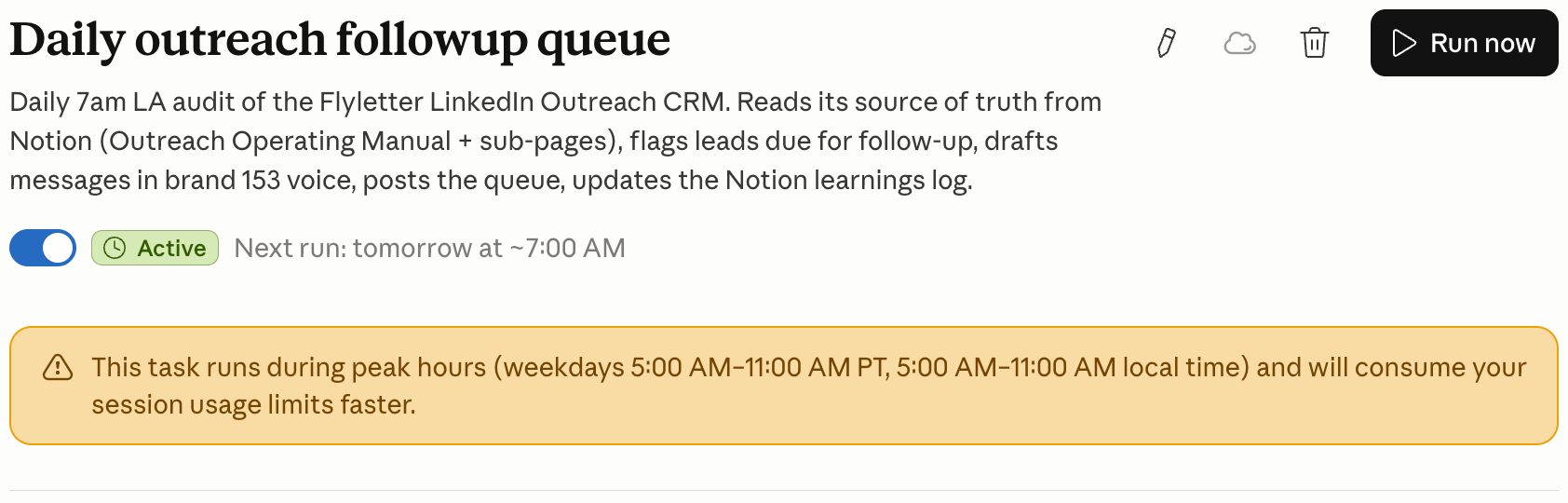
A scheduled task is a standing order you give Cowork once, and it operates indefinitely. Every morning it reads the Operating Manual, checks the rules against the Roster and the database, finds every lead whose next-action date has come due, and writes you the list.
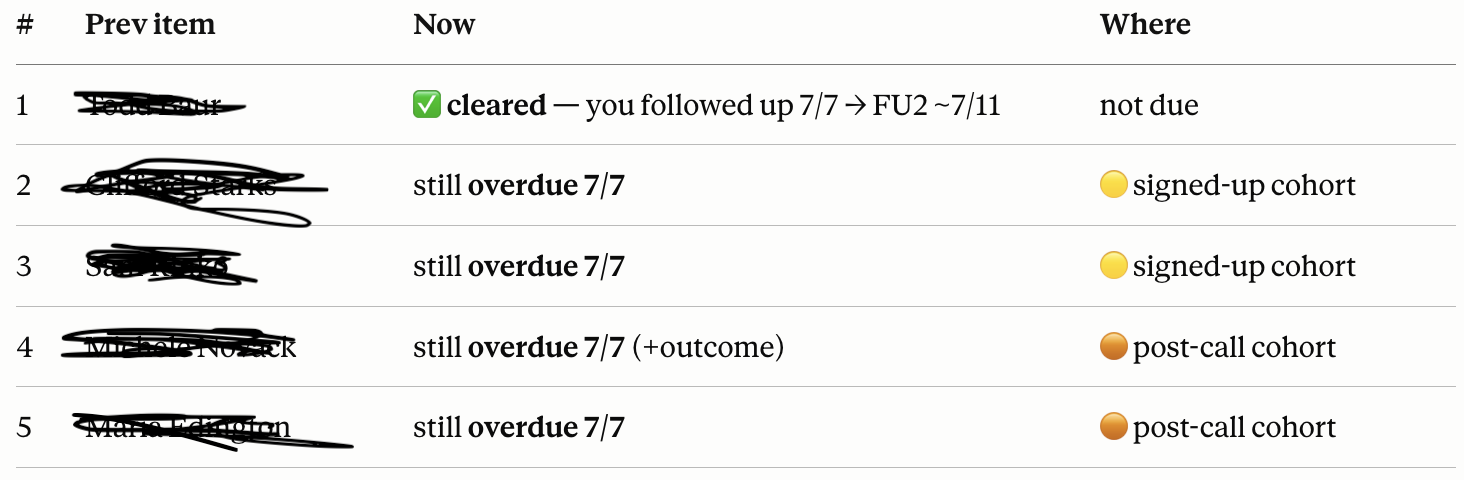
You don’t open your CRM. You don’t ask for a report. It’s on your screen when you sit down.
Have Claude Cowork run this prompt:
Create a scheduled task that runs every weekday at 7:00 AM. Each morning: read the CRM Operating Manual, then check the CRM Roster and database for every lead whose Next Action date is today or overdue. Produce a short list of those leads with their name, company, current status, and the specific next action I should take for each, based on the Manual’s cadence rules. Send it to me as a message. Also check my Google Calendar: mark any booking-pending lead who now has a call on the calendar as Call scheduled, and list today’s calls at the top of the queue.
The nice part is you never have to remember to run it, or even check it. Because anytime you open Claude Cowork it’ll be there. The morning that first list lands on its own is the moment the CRM stops being a chore and starts operating as an employee.
Step 8: Update the CRM by Chatting With Claude Cowork
The moment you open the database and edit a row by hand is the moment the system starts drifting. You’ll update the status but forget the next-action date. You’ll change the database but not the Roster. One manual touch and the pieces stop agreeing, and a CRM whose pieces disagree is the filing cabinet again.
So you never edit by hand. You report to Cowork, and Cowork updates everything at once.
The motion is this: you finish a call or an outreach message, and you tell Claude what happened. It parses it, updates the database, updates the Roster, sets the next-action date off your cadence rules.
For example:
Update the CRM: I just got off a call with Dana at Northwind. She’s interested and wants a proposal. I’ll send the proposal today.
That’s it. Cowork moves Dana to Qualified, stamps last-contact as today, sets her next-action date per the cadence in your Manual, and syncs the Roster row so it matches. You typed one sentence (well, technically three, but you get the point).
That’s the whole philosophy in one motion. You still had the call, read the room, decided a proposal was the right next move. That judgment is yours and always will be. The system just makes sure the facts of it land in the right places so nothing slips through the cracks.
Step 9: Run the Weekly Rhythm
Your daily rhythm is simple. Read the morning list. Do the thing: make the calls, write the replies, etc. Then, send Cowork a note based on what you did and it updates everything in one motion. That’s it. The system holds the facts, you hold the conversations.
Once a week, glance at the Operating Manual and ask whether it still matches reality. Did a stage stop making sense? Is three days too fast now that you’re busier? If something’s off, just tell Claude Cowork to change it. The whole system re-tunes itself off that chat.
And, at any time, you can query your CRM by chatting with Cowork. Things like, “how many leads do I have in closed-lost and what are the things those leads have in common?” Claude will tell you, and you can improve your sales motion based on the insights.
Where This Breaks (And How Not to Let It)
All of these are versions of the same sin. Chat with Claude Cowork, don’t make updates yourself:
-
Editing the Database by Hand. You open a row, change the status, feel productive. Now the database and the Roster disagree. One manual touch breaks the single source of truth. Always chat with Cowork, never edit yourself.
-
Writing a New Rule Anywhere but the Operating Manual. You decide on a new cadence and update the instructions in your scheduled task. But the instructions live in your Operating Manual. If you need to update the rules, just ask Claude.
Bottom Line
You already know how to talk to a lead, read the room, and figure out what to say next. That was never the problem. The problem was the part where a warm reply had to survive three weeks inside your head and a CRM you stopped opening.
So you hand that part off to Claude. The database holds the facts, the Operating Manual holds the rules, the Roster catches what search misses, and the scheduled task runs the whole thing before your coffee’s cold. One rule, one home, and the machine stays honest on its own.
For more automations with Claude Cowork, check out my article on automating your weekly planning.

Writer, founder, and AI builder. Currently building Flyletter, previously sold Selling Signals (100k subscribers). 1 sold, 2 failed, 1 active. This post started as an issue of my weekly newsletter.